A connector lets Claude access an external service and perform permitted operations. It uses an MCP server as an adapter between Claude’s tools and the service: the server holds credentials and exposes a limited set of actions. section 3.5
Figure 3.7 The MCP server is the adapter between Claude’s tool list and the source system. It holds the credentials and exposes a small set of permissioned actions.
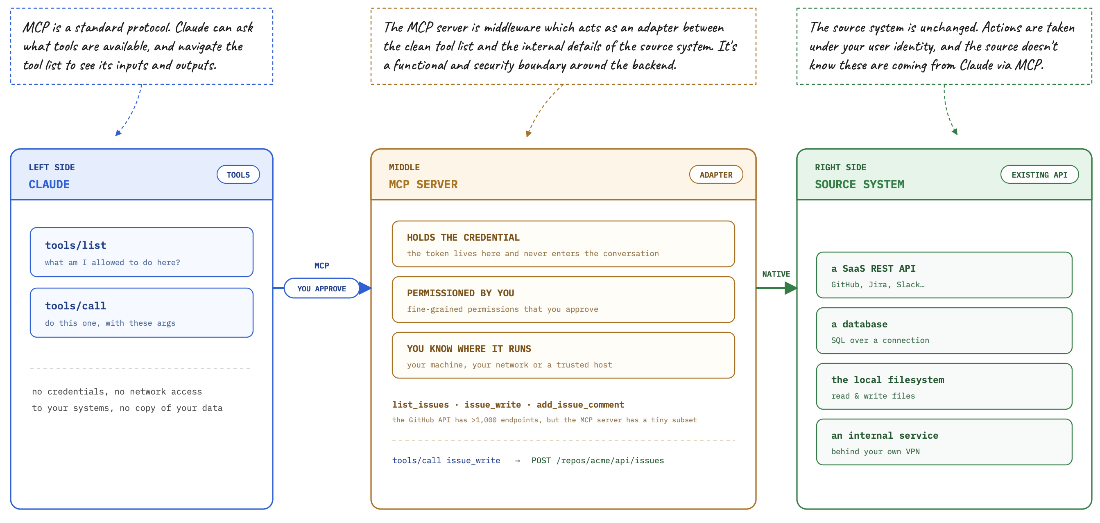
The adapter sits between Claude’s tool list and the external system. section 3.5
To add a connector in Claude Desktop, choose Customize > Connect your Apps and select a service. Sign in with the service, complete any required MFA, and review the permissions Claude requests. If you authorize them, the service sends a token back to Claude. You can revoke that token from the issuing system. section 3.5
Control operations action by action: allow them always, require confirmation, or block them. Set actions that change data to require approval, and review a proposed change before it runs. section 3.5
Summarize email and draft a reply
Connect Gmail or Microsoft 365, then start a Cowork task in a local folder. Ask: “Read this week’s emails, summarize what looks important and what needs a reply, and save the summary as emails-{year}-{week-number}.md.” Pick a flagged message and ask Claude to draft a reply. Expand the status lines to inspect the connector tools used, and review the draft before approving any write action. section 3.5
A Cowork live artifact can use connectors to fetch current data whenever it opens. For example, an email traffic dashboard can chart messages sent and received by day and classify email types. Check the results: one dashboard run produced an empty classification chart, while another inferred classifications. A cloud-hosted live artifact on claude.ai does not have MCP access. section 3.6