Layout is the spatial structure of a page: the plan for where content, interface elements, and empty space belong. It comes before finishing choices such as typography, color, and imagery because it establishes the page’s structure, hierarchy, and flow. A clear structure helps people navigate and understand what they are seeing; an improvised one can feel confusing or unfinished. section 2.0 section 1.2
Start with the user’s needs and the page’s goal, then decide the page layout, content placement, and route through the interface. Treat the result as a blueprint: identify the header, footer, and main content; list the content sections; and decide how the main area is divided. Development can begin once that structure is agreed upon, while visual details continue to evolve. section 1.2.1 section 6.6
Build a layout around content and user goals rather than forcing content into a generic template:
- Use a grid of columns, rows, and gaps to organize sections consistently. Common grids use 12 columns on desktop, 8 on tablets, and 4 on mobile. section 6.6
- Choose the number of columns after considering the content. Desktop pages commonly use one to three columns, then scale to one column on phones for readability. section 6.3
- Keep shared structure where pages serve the same purpose, such as product or documentation pages, so users remain oriented as they navigate. section 2.1.3
- Use whitespace to separate related groups and make content easier to scan. On mobile, reduce information where possible instead of shrinking the desktop page. section 6.6
A home page is not every page
A home page may need a distinctive structure that introduces a site quickly, while product pages should repeat one shared layout because they present the same kind of information. Consistency signals that users are still in the expected place; changing the layout unexpectedly can interrupt their task and make them reorient themselves. section 2.1.3 section 6.3
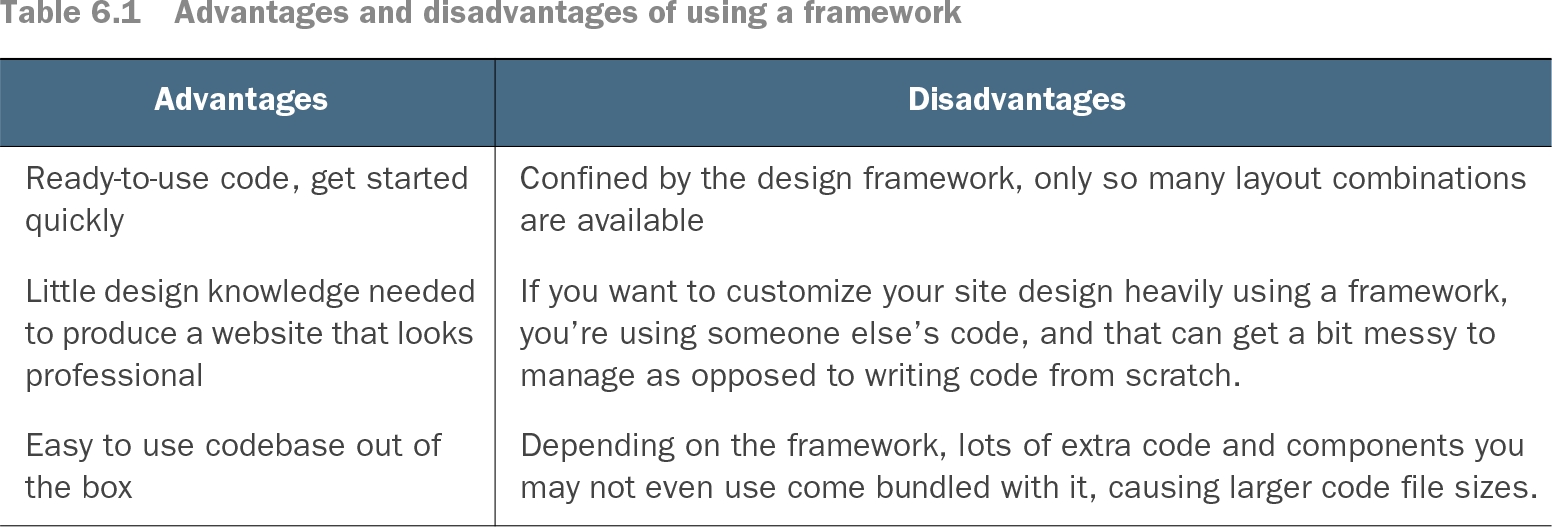
Table 6.1 Advantages and disadvantages of using a framework (view table figure)
Compare the speed of a ready-made framework with its limits: preset layout combinations, harder customization, and unused bundled code can constrain a tailored design. section 6.0