Phishing uses deception to make a message appear trustworthy while seeking sensitive information or prompting a harmful action. Email is a common delivery route, and convincing messages can be faked. Treat an unexpected message as suspicious when it feels unusual, asks you to click a link, or requests sensitive information. section 7.1.3
AI can help assess a questionable email without requiring you to understand its technical contents. Copy the email’s source text and header information from your email client, then provide it to an AI service for analysis. M365 Copilot can also inspect email content directly when that integration is available. section 7.1.3
Use this practical checking workflow:
- Open the message source or properties: Outlook for Mac provides View Source, while Outlook for PC provides header information through File and Properties. section 7.1.3
- Copy the source and headers into M365 Copilot and ask whether the email is a phishing attempt. section 7.1.3
- Review the explanation rather than relying only on the label; the demonstrated analysis identified failures in SPF and DKIM authentication checks. section 7.1.3
A direct analysis request
After pasting the email’s source content into M365 Copilot, ask: “Determine whether this email is a phishing attempt.” Use the response to investigate suspicious authentication results before clicking links or sharing sensitive information. section 7.1.3
Figure 7.2 Finding the source text and headers of an email in Outlook for Mac and PC
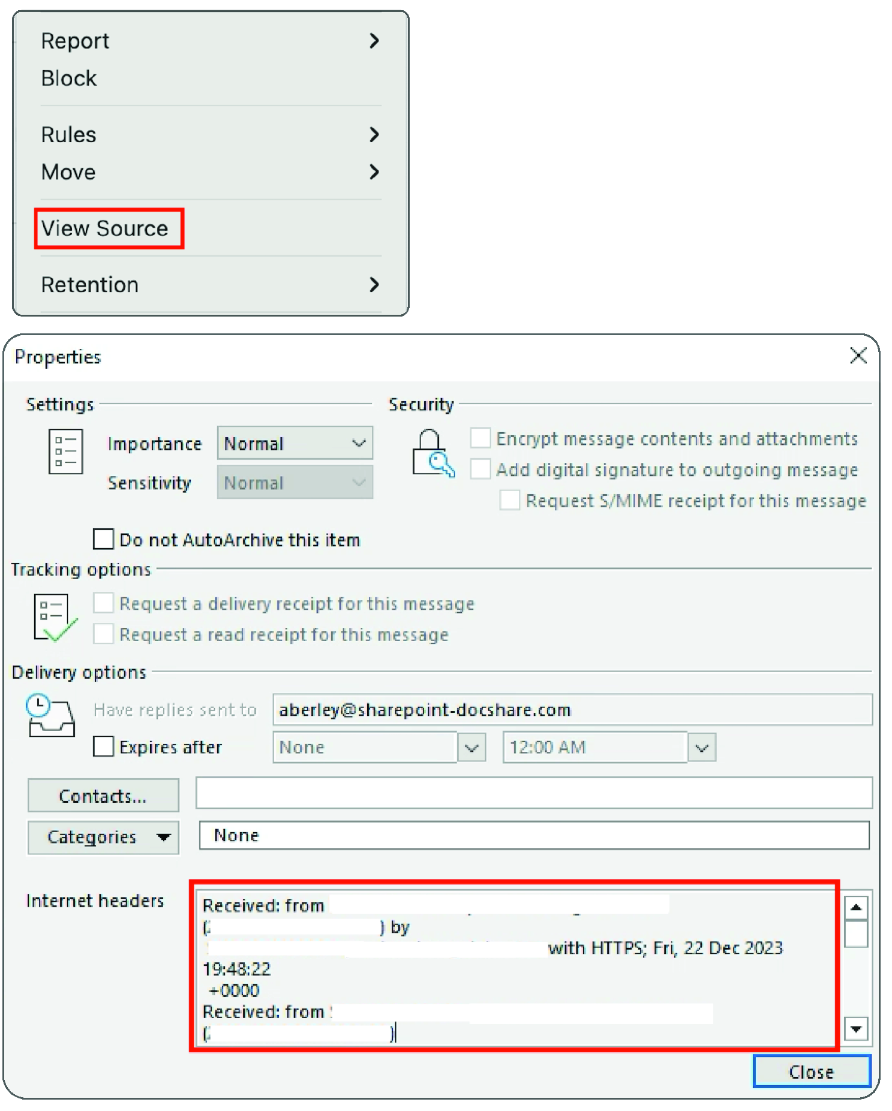
Compare how Outlook for Mac and PC expose email source text and header information for analysis. section 7.1.3
Figure 7.3 M365 Copilot analysis of email source text
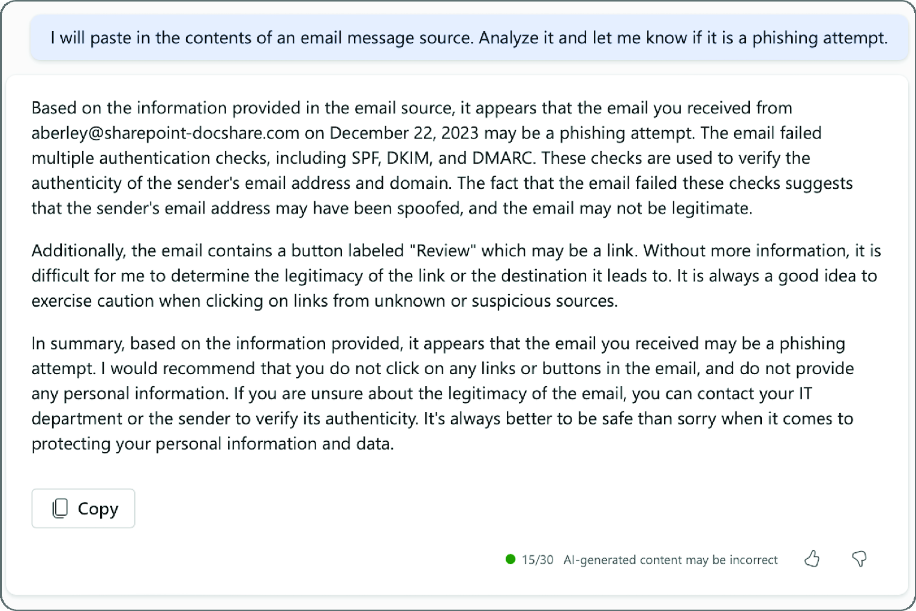
Inspect an example of M365 Copilot analyzing pasted email source text for phishing indicators. section 7.1.3