The principle of proximity uses spatial closeness to communicate relationships. Elements placed near one another look like a group; elements separated by more whitespace look less related. This makes proximity a practical way to organize information, establish hierarchy, and help people scan a page or application quickly. section 2.1.1 section 2.3
Spacing is not empty decoration. It tells users which heading belongs with which text, which controls belong to one task, and where one content section ends before another begins. Even spacing can accidentally make unrelated items appear to be one large group, while tighter internal spacing and wider gaps between groups create clear content chunks. section 2.1.1
Use proximity deliberately when laying out an interface:
- Keep related elements physically close, such as a blog title and its preview text. section 2.1.1
- Create a larger gap between separate cards, posts, or sections than between items inside each group. section 2.1.1
- Group controls by their purpose; separate primary actions from navigation actions when they serve different jobs. section 2.1.1
- Break dense text and long forms into headed groups so users can identify and parse the information they need. section 2.1.1
- Combine spacing with contrast, alignment, repetition, and balance rather than expecting proximity alone to create every distinction. section 2.1 section 2.3
Blog post list
A list in which every title and preview has identical spacing reads as one undifferentiated group. Put each title close to its own preview, then add more space after that preview. Each title-preview pair becomes a distinct post while the list remains easy to scan. Bold titles can add contrast, but the spacing establishes the relationship first. section 2.1.1
Checkout form
A long run of input fields can hide what information belongs together. Group related fields into sections and add headings, using proximity to make each section easier to scan and understand. section 2.1.1
Figure 2.14 If we group related input fields and add section headings, the checkout form becomes easier to parse when scanning it.
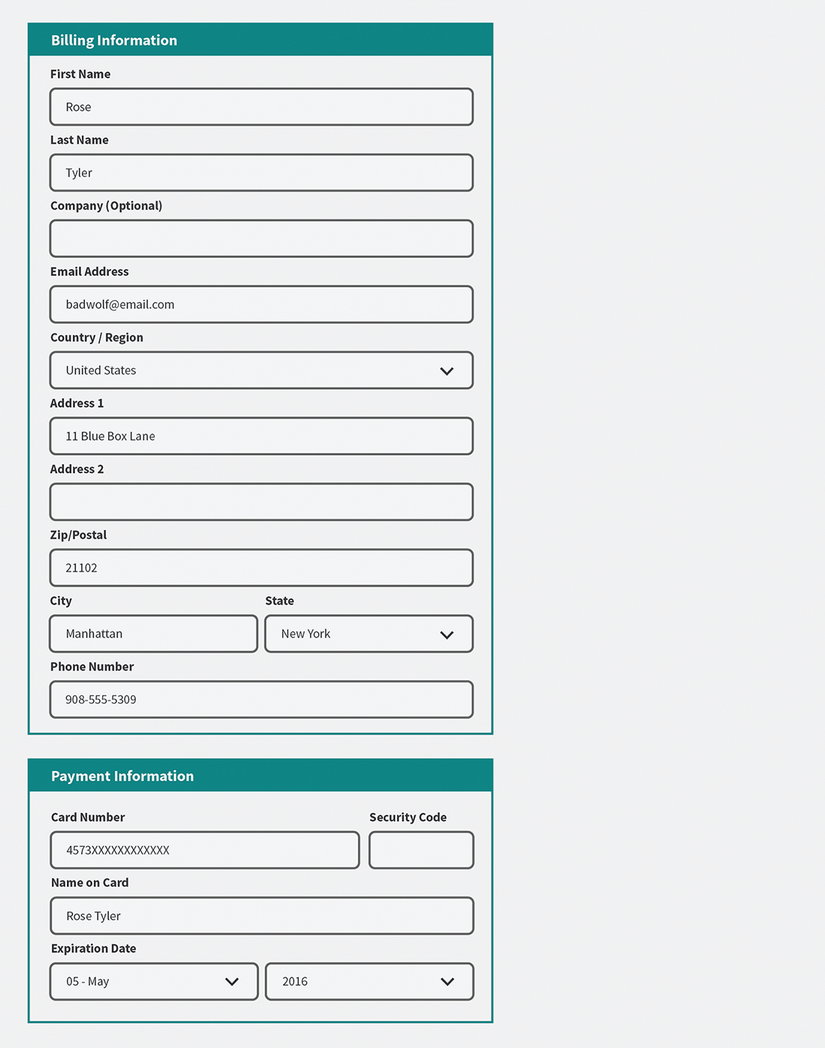
Compare an ungrouped checkout form with grouped fields and section headings to see how proximity makes required information easier to parse. section 2.1.1