Need a place for application data, shared files, or messages between services? An Azure storage account is the resource that brings those storage options together. It is a logical container, not a folder where you put files directly: blob, file, queue, and table storage remain distinct within it. One account can hold all four, making it useful for organizing storage by project, client, or department. section 5.2 section 2.2.3
Figure 5.2 The four types of storage that can live inside a storage account
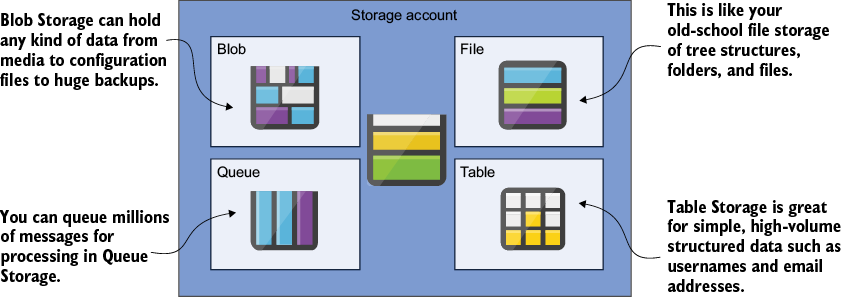
See how blob, file, queue, and table storage sit separately inside one account. section 5.2
Create the account around the job its data needs to do:
- Start with a resource group. In the Azure Portal, find Storage Accounts, select Create, choose that resource group, and fill in the basic values. Defaults are sufficient for an initial exercise; other settings deserve attention when the workload is real. section 2.2.4
- Alternatively, use PowerShell: create a resource group with New-AzResourceGroup, then create the account with New-AzStorageAccount. Specify its resource group, name, location, SKU, and kind. The name must be lowercase and unique across Azure because it forms part of the account’s public domain name. section 5.2
- Choose storage with retrieval needs in mind. Access frequency and redundancy affect cost; an account also has a defined redundancy option and can use different performance tiers. The cheapest-looking choice is less appealing if it does not suit how the data will be used. section 5.1 section 5.8
PS C:\> New-AzStorageAccount -ResourceGroupName 'BanningRG'
-Name 'banningstorage' -Location westus -SkuName Standard_RAGRS
-Kind StorageV2
A PowerShell example sets the account’s resource group, lowercase name, location, SKU, and StorageV2 kind. section 5.2
From local files to a hybrid share
When a business’s file needs outgrow its local hardware, it can create Azure file shares in a storage account. Azure File Sync agents keep the local servers and Azure shares synchronized; configured backup routines protect the cloud files. Authentication and authorization still matter: Microsoft Entra Cloud Sync is part of this hybrid setup. The business can retain local access without buying all its future storage hardware up front. section 1.2.2
Storage for an AI pipeline
A reviews blob container can supply data to an AI Foundry pipeline. Create its storage account, add it as a connected resource using Microsoft Entra ID authentication, and assign the workspace’s managed identity the Storage Blob Data Contributor role. That permission lets the pipeline list, read, and write the blobs it needs—not rummage through data without authorization. section 7.4.2