Windows Task Scheduler automates programs and scripts on a Windows machine. It replaces a manual terminal launch with a task that runs a chosen program on a recurring time-and-date cadence. This is useful when an offline data or machine learning pipeline must score customers and upload predictions every day without someone starting it manually. section 11.0 section 11.1
Figure 11.1 Instead of manually launching the offline pipeline from a terminal, we can schedule the pipeline to run automatically.
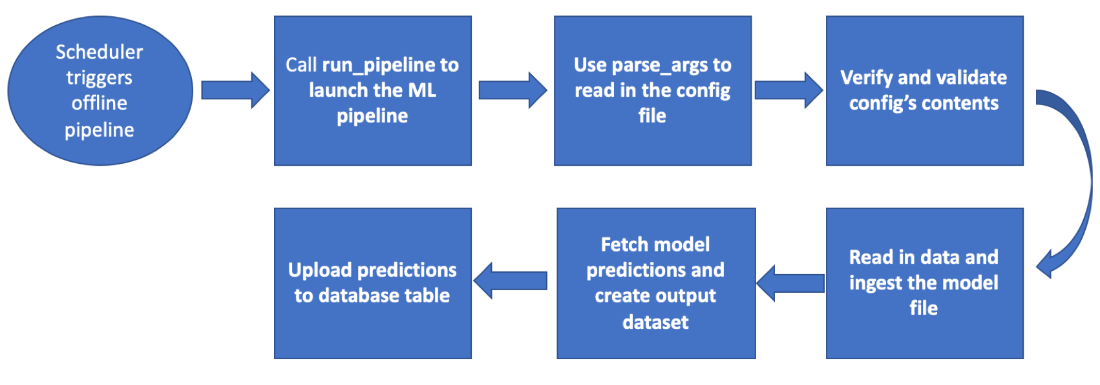
The scheduler becomes one step in the offline pipeline: it triggers the same workflow that would otherwise be launched manually from a terminal. section 11.1
Before creating a scheduled task, first prove that the script runs from the command line. Find the full path to python.exe, then use that path with the script filename. Testing this command separates Python-path or script problems from Task Scheduler configuration problems. section 11.1.1
Start with a small file-writing script
A low-risk test script creates a text file in a supplied directory, using a timestamp in the filename. Schedule this script first and confirm that the file appears. After that succeeds, use the same approach for a customer churn pipeline and optionally write a completion file containing the job’s finish date. section 11.1.1 section 11.1.1
Listing 11.1 This script creates a basic text file, which we can schedule to run automatically via the Task Scheduler.
import time #1

def create_file(dir_name: str): #2

    current_time = str(int(time.time())) #3
    path = "sample_file_" + current_time + ".txt" #4
    path = dir_name + "/" + path #4

    with open(path, "w+") as file_obj: #5
        file_obj.write("test") #5

create_file("/Users/user/Documents") #6
This small script provides a visible result—a newly created text file—so it can confirm that a scheduled Python command actually ran. section 11.1.1
Create a scheduled Python task in a practical sequence:
- Locate python.exe and run the script successfully from a terminal using its full Python path. section 11.1.1
- Open Task Scheduler and choose Create Task from the Actions menu, then give the task a recognizable name. section 11.1.1
- Choose whether the task runs only when the user is logged on or regardless of logon state. section 11.1.1
- Add a trigger. The trigger defines when the task launches through time and date settings, including the needed frequency. section 11.1.1
- Add an action that identifies what should run automatically: Python as the program and the target script as its filename. section 11.1.1
Task Scheduler is a production-oriented automation step rather than a replacement for the pipeline itself. The pipeline continues to perform its scoring or data work; the scheduler controls when that work starts. On Linux and macOS, cron serves the comparable scheduling role. section 11.1 section 11.5
Use a completion artifact when a pipeline needs a simple visible signal that it finished. For example, a customer churn job can create customer_churn.txt in a user Documents folder and write the completion date into it after the pipeline runs. section 11.1.1
The essential pattern is straightforward: validate a command manually, configure a trigger and action, and confirm an observable result. That sequence makes recurring Windows automation easier to set up and troubleshoot before assigning it to an important pipeline. section 11.1.1 section 11.5