Visual Studio is a comprehensive integrated development environment for .NET development on Windows and macOS. It combines code completion, compilers, graphical designers, debugging support, project management, package managers, task runners, integrated source control, and syntax highlighting. These features help development teams improve productivity and standardize parts of their workflow. section 2.1.2 section 2.6
A practical ASP.NET Core setup follows these steps:
- Install Visual Studio Installer, then select the ASP.NET and web development workload; choose language packs as needed. section 2.2
- Launch Visual Studio, choose Create a New Project, and search for the ASP.NET Core web API template. section 2.3
- Name the project, select .NET 6.0 when following the demonstrated setup, and accept the remaining defaults. section 2.3
- Press F5 or select Run to start Debug mode and verify that the default browser opens the local API. section 2.3
Starting the MyBGList API
Creating the MyBGList project from the ASP.NET Core web API template generates a solution and source files, including Program.cs, launchSettings.json, appsettings.json, WeatherForecast.cs, and WeatherForecastController.cs. The generated application can be run locally before replacing the weather-forecast sample with board-game-related classes. section 2.3 section 2.6
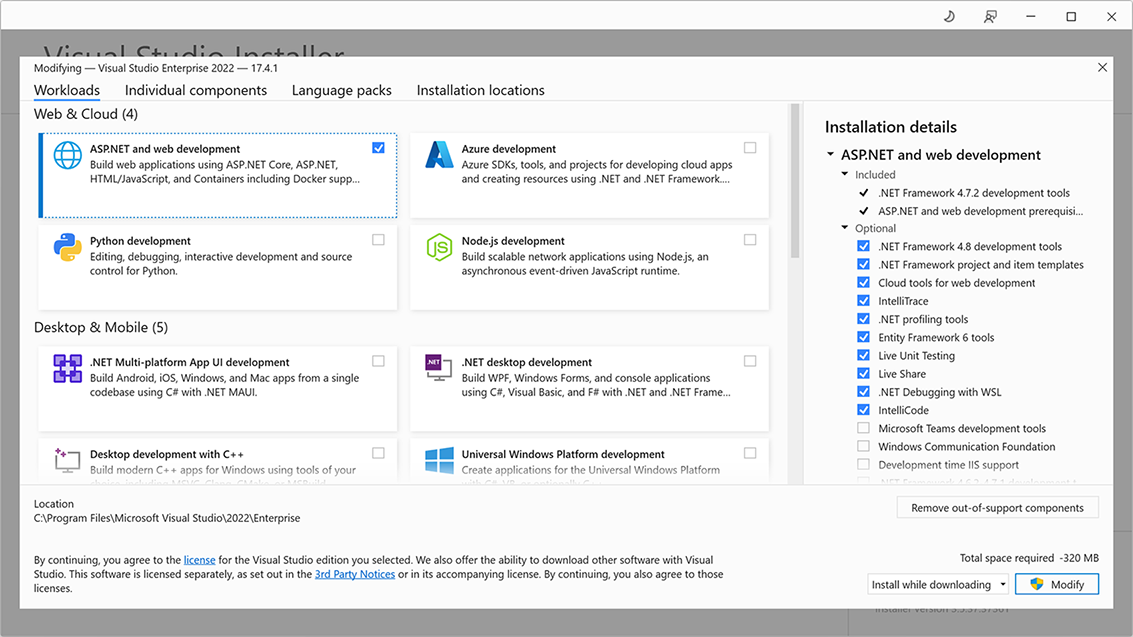
Use the installation figure to identify the ASP.NET and web development workload required for the web API setup. section 2.2