Visual Studio is a GUI development environment for creating and working with .NET MAUI apps. It combines project templates, code completion, testing, debugging, design feedback, and platform selection in one place. Its main practical advantage is discoverability: developers can find options by navigating the interface instead of remembering commands. section 2.1 section 2.1.1
For a first app, create a project from the Blank .NET MAUI Template, name it AlohaWorld, choose a save location, and let Visual Studio generate the solution. Solution Explorer then shows the project files and folders. On Windows, searching templates for “maui” is the quickest way to narrow the list. section 2.1.1 section 2.1.1
Figure 2.3 You can filter project templates in Visual Studio using the language, platform, and project type drop-downs, but the free text filter is the quickest way to find what you’re looking for. In this example, we’ve entered maui as a search term and narrowed the list of project templates to .NET MAUI projects.
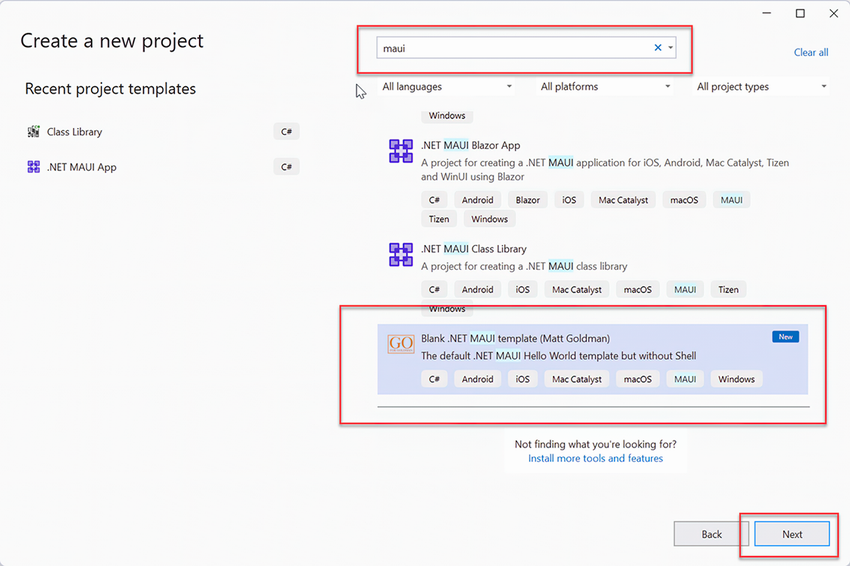
Use the project-template search to find .NET MAUI templates quickly before creating a new app. section 2.1.1
Run a .NET MAUI app from the toolbar by selecting an appropriate target:
- On Windows, use the Run-button drop-down to choose a Windows framework target, then click Run. Enable Windows Developer Mode when required to run unsigned development apps. section 2.2.1
- On macOS, choose the build profile and target beside Run. Targets include the local Mac and supported iOS simulators. section 2.2.2
Update a running AlohaWorld app
Open MainPage.xaml and change the Label text from “Hello, World!” to “Aloha, World!”. Hot Reload can apply supported edits while the app runs. Imported image changes may require a rebuild or restart: add the image under Resources, set its Build Action to MauiImage, and update the Image Source filename. section 2.4.1 section 2.4.2
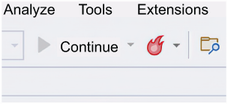
The Hot Reload control applies supported changes to a running app; its menu can enable reload on file save. section 2.4.1
Visual Studio is a strong fit when integrated tooling matters. XAML Live Preview, IntelliSense, IntelliCode, testing, debugging, and simple target selection reduce friction, while the .NET CLI remains a lighter alternative. The CLI does not target Windows directly; Windows command-line builds use MSBuild instead. section 2.1