A trigger is the event or condition that starts an automated workflow. In Teams Workflows, triggers can monitor incoming email, selected senders, or a specific Outlook folder before connected actions run. section 7.3.1
Configure a trigger by:
- Choosing a workflow template and checking that its connectors are authorized. section 7.3.1
- Limiting the monitored messages by sender or leaving the sender field blank for all received email. section 7.3.1
- Selecting an Outlook folder so only messages placed there start processing. section 7.3.1
Email sentiment workflow
Select “Analyze email sentiment with AI Builder and send results to Teams.” Configure the sender or folder filter, choose the Teams recipient or channel, and save the flow. When matching email arrives, the workflow runs and posts the result. section 7.3.1
Figure 7.11 Choosing the email folder to monitor
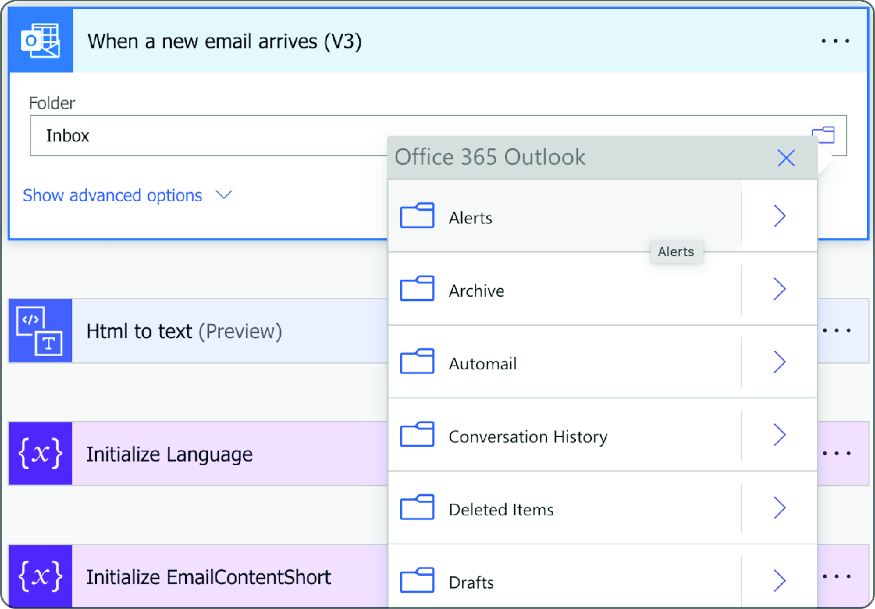
Inspect the folder-selection view to see how an Outlook location narrows the messages that activate the workflow. section 7.3.1