A bounding box is the rectangle that encloses an element. Describe it with its top-left position and its dimensions: (x, y, width, height). Equivalently, treat it as one point plus a size vector extending to the bottom-right corner. In browser coordinates, x increases rightward and y increases downward. section 10.1 section 10.6
JavaScript exposes an element’s current viewport-relative bounding box through getBoundingClientRect(). Its result provides x and y (also top and left), right, bottom, width, and height—answering where the element is and how large it is right now. Width and height include padding and borders; with box-sizing: border-box, they match the CSS width and height values. section 10.2
Figure 10.1 The return values of getBoundingClientRect()
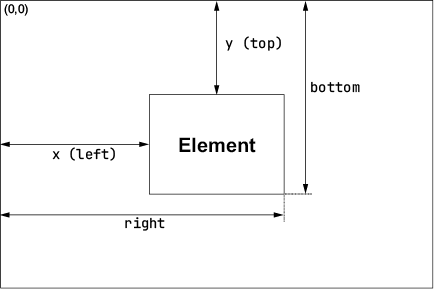
Use the returned edges and dimensions to inspect one element’s rectangle in the viewport coordinate system. section 10.2
Bounding boxes make alignment a small calculation rather than a visual guess. Find an element’s horizontal center with (left + right) / 2, then subtract half the other element’s width to place that element’s own center on the same x-coordinate. section 10.2.2 section 10.6
Center a tooltip over a button
Measure both rectangles. Set the tooltip’s left value to the button center minus half the tooltip width. Set its top value to buttonRect.top minus tooltipRect.height minus 8, placing it above the button with an 8px gap. Measure after making the tooltip visible so its dimensions are available. section 10.2.2
const button = document.getElementById('demoButton');
const tooltip = document.getElementById('tooltip');

function positionTooltip() {
    const buttonRect = button.getBoundingClientRect();    #1
    const tooltipRect = tooltip.getBoundingClientRect();     #1

    const buttonCenterX = (buttonRect.left +    #2
                           buttonRect.right) / 2;     #2
    tooltip.style.left = buttonCenterX -    #3
                         tooltipRect.width / 2 + 'px';     #3

    tooltip.style.top = buttonRect.top -    #4
                         tooltipRect.height - 8 + 'px';     #4
}

button.addEventListener('mouseenter', () => {    #5
    tooltip.classList.add('visible');     #5
    positionTooltip();     #5
});     #5
 #5
button.addEventListener('mouseleave', () => {    #6
    tooltip.classList.remove('visible');     #6
});     #6
This positioning function measures the button and tooltip, calculates a shared horizontal center, and writes left and top CSS values. section 10.2.2
Use bounding-box values whenever a script must move or align elements based on their actual displayed positions and sizes. The same coordinate-and-vector approach also connects geometric calculations to CSS translations and animation constraints. section 10.2 section 10.6