Padding gives content breathing room inside an element, between the content and its edge or border. On a card, it keeps text from running against the sides; on a bordered date heading, it separates the text from the lines. Unlike margin, padding adds space inside the element rather than between neighboring elements. section 6.7 section 8.3.4 section 4.1.5
Use the padding shorthand to set several sides in one declaration:
- `padding: 10px` sets all four sides to 10px. section 1.7.1
- `padding: 25px 15px` sets top and bottom to 25px, then right and left to 15px. section 1.7.1 section 9.2.2
- `padding: 0 24px 24px` sets the top to 0, both sides to 24px, and the bottom to 24px. Four values run clockwise: top, right, bottom, left. section 1.7.1 section 6.7
Keep a card’s content away from its edges
Start with `.card { padding: 0 24px 24px; }`. The side padding accommodates longer names, and the bottom padding lifts links away from the card’s lower edge. Leaving the top at zero avoids pushing down the image. If the top alone needs space—as it does above a strip on the back of a credit-card design—use `padding-top: 30px`. section 6.7 section 9.2.3
Choose the element that needs the space. Replacing a card header’s default margin with padding creates space inside the card; a separate margin on the card preserves the gap between cards. Browser defaults can also work against a design: a fieldset’s padding can be reset with `padding: 0`. For an inline link styled like a button, `display: inline-block` lets its padding affect the element’s height. section 8.3.4 section 10.2 section 5.4.2
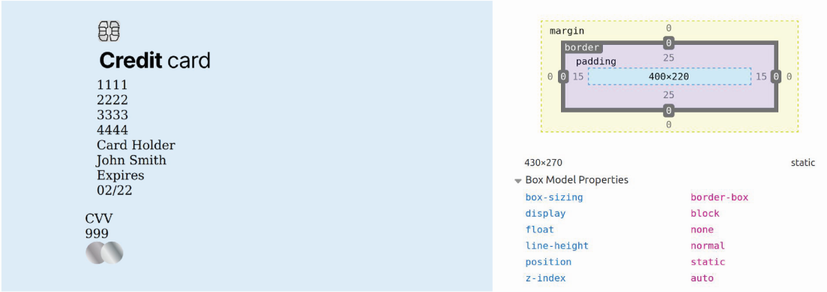
Compare the padded card with its box-model diagram: with `box-sizing: border-box`, adding padding reduces the room available to content without increasing the card face’s dimensions. section 9.2.2