Filtering selects only records that satisfy a condition. In an interactive visualization, a user chooses a category and the chart updates to show the matching data. section 7.0
A D3 filtering workflow can proceed as follows:
- Create filter controls such as All, Women, and Men, and track the active choice. section 7.2
- Bind the filter definitions to button elements, assign an active class, and display each label. section 7.2
- Use the selected identifier to retain the complete dataset or keep records whose gender matches the selected value. section 7.2.3
- Recalculate the histogram bins, bind them to the existing rectangles, and update their y and height attributes. section 7.2.3
Gender-filtered salary histogram
Clicking Women or Men changes the histogram to the corresponding respondents; clicking All restores the whole dataset. The chart’s bars then represent newly calculated bins. section 7.2 section 7.2.3
Figure 7.1 Histogram of the salary distribution among data visualization practitioners in the US with buttons to filter the chart by gender
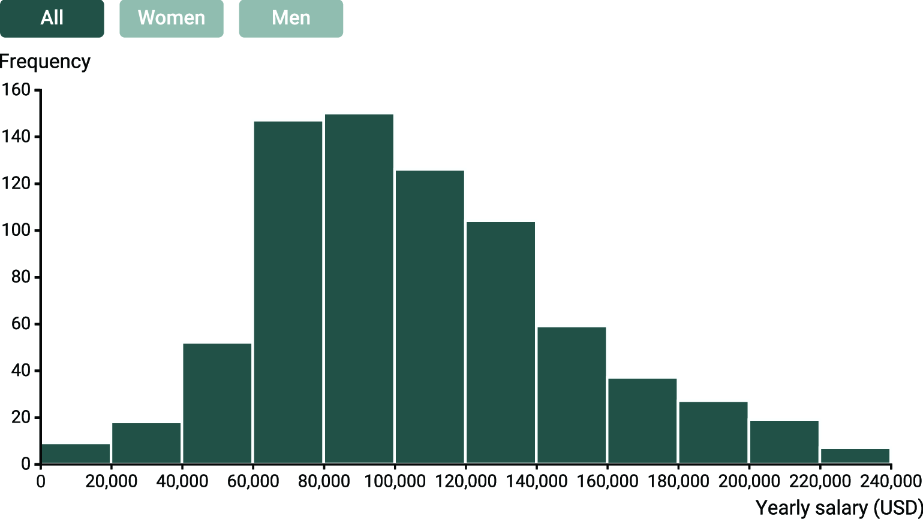
Inspect the three-button interface and compare the resulting histogram states. section 7.2