A dashboard is a visual interface that brings several charts or information displays into one place for monitoring or analysis. Its real job is not to cram in every possible view; it is to help people find the important signals, compare them in context, and explore when a question appears. A good dashboard gives users bearings before asking them to hunt through a thicket of controls and charts. section 7.2.2 section 7.2.1
Start with the user’s task. A housekeeping lead, for example, may need occupancy information across several properties while scheduling staff. Research and planning identify such needs before layout choices begin; otherwise, a dashboard can become a handsome collection of answers to questions nobody asked. section 8.1 section 8.3.3
Use layout to make the interface easier to scan:
- Put the most important content toward the upper left and less important content toward the lower right when designing for left-to-right, top-to-bottom reading. section 8.3.3
- Begin with a simple desktop- or laptop-sized arrangement: logo and title near the top, filters and controls to the right, then main content below. section 8.3.3
- Leave generous white space between elements and around the outside edge; starting around 20 pixels provides a practical first pass. section 8.3.3
- Sketch alternatives and test whether each display earns its space. A pile of bar charts can be busy and overwhelming, while a calendar and line chart may better match the operational question. section 8.3.3
Interactivity can make a dense dashboard manageable. A survey dashboard can show overall response percentages, then let someone choose a breakdown such as generation, gender, location, or number of selected items. A selected response can remain visible both as a focused comparison and in its ranked context. Help text and obvious controls matter here: exploration is much friendlier when users know what they are looking at and what a dropdown will change. section 7.2.2
Figure 7.8 The interactivity in this dashboard allows the user to explore multiple ways of segmenting the data set, and as a bonus, it packs a ton of information into a compact space: we learn about the popularity of doctors measuring various indicators themselves across all respondents and respondents broken down by generation, and then we also get a separate breakdown of total respondents by generation. You can interact with it yourself or download it from Steve’s blog at https://www.datarevelations.com/howmany/. (Steve Wexler, used with permission)
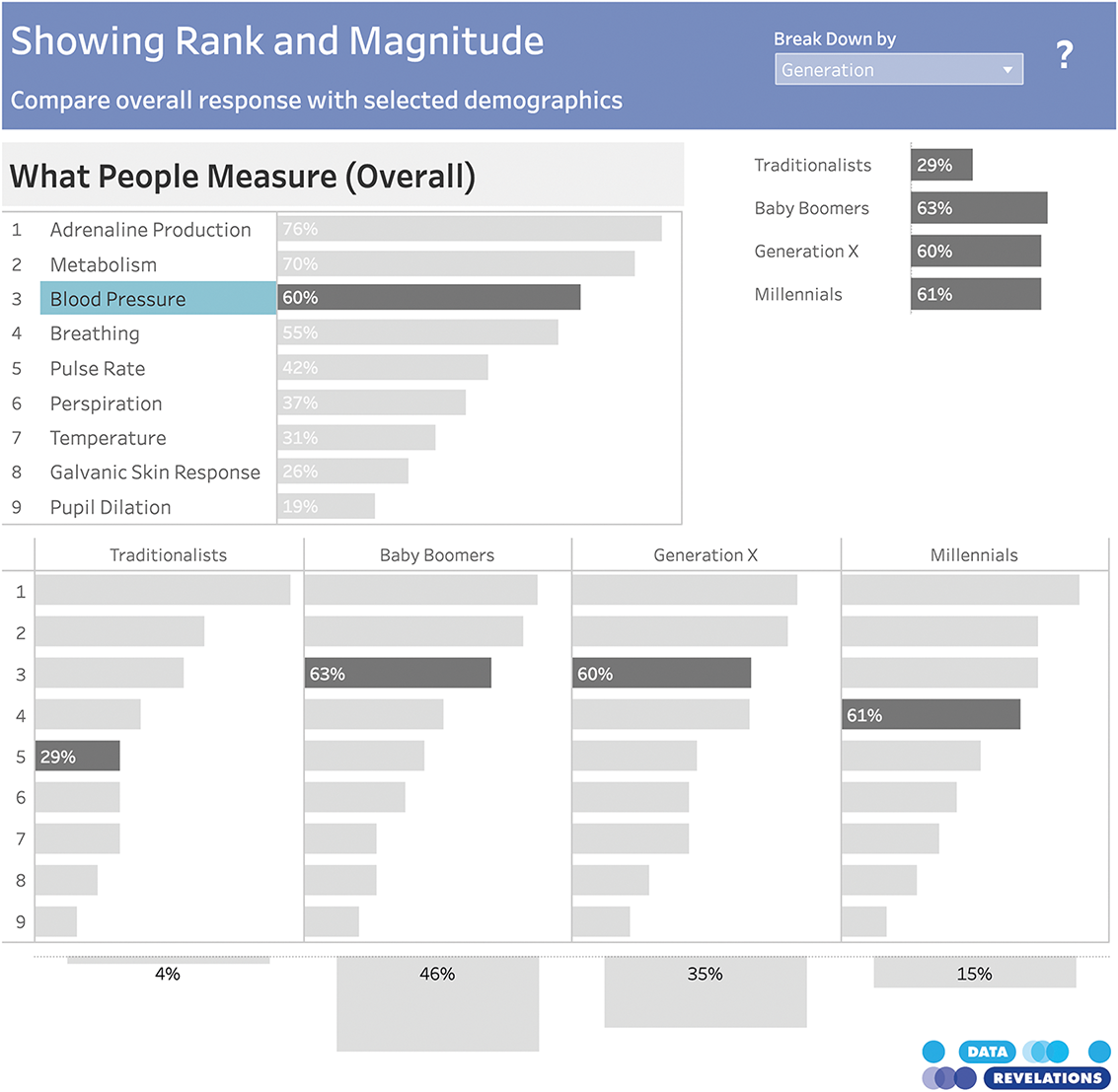
Explore how linked bars, rankings, a dropdown, and help combine overall survey results with selected demographic breakdowns in a compact interface. section 7.2.2
For larger or more complex data, follow the Visual Information-Seeking Mantra: overview first, then zoom and filter, then details on demand. Start with key takeaways, let users narrow the view, and reveal detail after they select something worth investigating. The steps may live on one page or across several pages, depending on users’ needs. section 7.2.1
From metric overload to a navigable overview
Nine separate metric dashboards, each sliced by geography, product type, and marketing channel, made it difficult to find anything. A better wireframe placed key performance indicators in overview cards; selecting a card opened a focused metric view, where a dropdown chose the segment breakdown and small multiples supplied comparison. That structure turns “everything everywhere” into a path: orient, choose, investigate. section 9.2.2 section 7.2.1
Figure 9.8 When asked to use someone else’s suboptimal design, I gave the client what they requested, but then, on the side, I whipped up a quick wireframe of something I thought would satisfy their needs better: a dashboard following the visual information-seeking mantra of overview first (top), then zoom and filter (lower left), then details on demand (lower right).
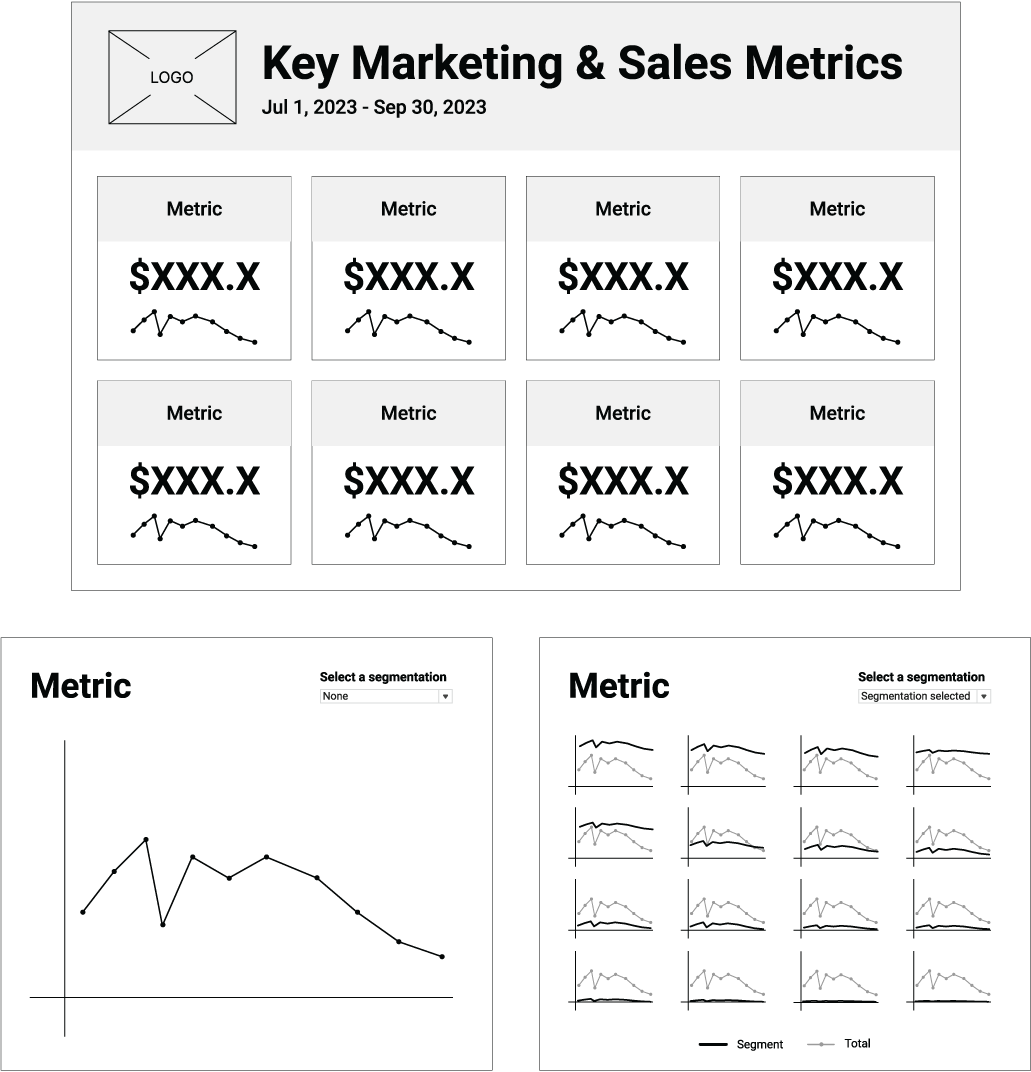
Compare a crowded multi-dashboard request with a wireframe that uses KPI cards, focused views, filtering, and details on demand. section 9.2.2
The practical takeaway is pleasantly unglamorous: decide what users need to do, establish a clear visual hierarchy, preserve breathing room, and make each interaction advance the investigation. More charts are not automatically more insight—sometimes they are just more charts wearing a trench coat. section 8.3.3 section 9.2.2